Thursday, September 1, 2011

Greate Flash Clock Widgets for Blogger / Blogspot

1 comments
Flash clock Widgets for Blogs are simple and easy to use. Some Clocks with Preview


<object width="150" height="150">
<param name="movie" value="http://www.csalim.com/clocks/226655.swf">
<embed src="http://www.csalim.com/clocks/226655.swf" width="200" height="200">
</embed>
</object>


<object width="150" height="150">
<param name="movie" value="http://www.csalim.com/clocks/985396.swf">
<embed src="http://www.csalim.com/clocks/985396.swf" width="200" height="200">
</embed>
</object>


<object width="150" height="150">
<param name="movie" value="http://www.csalim.com/clocks/189466.swf">
<embed src="http://www.csalim.com/clocks/189466.swf" width="200" height="200">
</embed>
</object>


<object width="150" height="150">
<param name="movie" value="http://www.csalim.com/clocks/633993.swf">
<embed src="http://www.csalim.com/clocks/633993.swf" width="200" height="200">
</embed>
</object>


<object width="150" height="150">
<param name="movie" value="http://www.csalim.com/clocks/118647.swf">
<embed src="http://www.csalim.com/clocks/118647.swf" width="200" height="200">
</embed>
</object>


<object width="150" height="150">
<param name="movie" value="http://www.csalim.com/clocks/301788.swf">
<embed src="http://www.csalim.com/clocks/301788.swf" width="200" height="200">
</embed>
</object>


<object width="150" height="150">
<param name="movie" value="http://www.csalim.com/clocks/945910.swf">
<embed src="http://www.csalim.com/clocks/945910.swf" width="200" height="200">
</embed>
</object>


<object width="150" height="150">
<param name="movie" value="http://www.csalim.com/clocks/267241.swf">
<embed src="http://www.csalim.com/clocks/267241.swf" width="200" height="200">
</embed>
</object>


<object width="150" height="150">
<param name="movie" value="http://www.csalim.com/clocks/119643.swf">
<embed src="http://www.csalim.com/clocks/119643.swf" width="200" height="200">
</embed>
</object>


<object width="150" height="150">
<param name="movie" value="http://www.csalim.com/clocks/548744.swf">
<embed src="http://www.csalim.com/clocks/548744.swf" width="200" height="200">
</embed>
</object>


<object width="150" height="150">
<param name="movie" value="http://www.csalim.com/clocks/143361.swf">
<embed src="http://www.csalim.com/clocks/143361.swf" width="200" height="200">
</embed>
</object>


<object width="150" height="150">
<param name="movie" value="http://www.csalim.com/clocks/205420.swf">
<embed src="http://www.csalim.com/clocks/205420.swf" width="200" height="200">
</embed>
</object>
Adding Clocks to blogger:
First Sign in to your blog and go to

  1. Layout > Page Elements > "Add Gadget" where you want.
  2. Select  HTML/JavaScript
  3. Paste Above clock code in pop up window.
  4. Save and Check your Blog.

Honehone Clock [Clock Parts Blog]

0 comments
Watch announced the 17 children assigned Osaka, Honehone clock. The clock that is rather shy figure fine character like Mr. honehone.
Only one direction so that not only made animation 1 → 2 → 3 · · · 9 → 0, when it comes to 00 seconds from 59 seconds, and when the attraction is at 00 to 24 hours.

Once a small, well, I have a cute blog and I think parts.


Adding This widget :

Now Go to your Dashboard >> Design >> 
And on your page elements page, click on Add A Gadget any where on the screen,
And choose ” HTML / JavaScript ” , Leave the title empty, ant at the content area, paste the following code,


<script charset="Shift_JIS" src="http://chabudai.sakura.ne.jp/blogparts/honehoneclock/honehone_clock_tr.js"></script>

<script charset="Shift_JIS" src="http://chabudai.sakura.ne.jp/blogparts/honehoneclock/honehone_clock_wh.js"></script> 
Hours, minutes, and expanding universal feature of seconds to roll over? Month.

Friday, August 19, 2011

Make Rainbow Color Link For Blog

0 comments
Many ways are made by every blogger to make their blogs look pretty impressed, unique and various . Among the modifications to existing templates,Want to make a link on your blog and rainbow-colored flashes when touched by a pointer? It is very easy .Easy anyway, follow these steps:
  •  In the circumstances loggin,
  • Log in menu templates,
  • Click on Edit HTML,
  • Find <head> code,(control + F)
Then copy and paste the following code just below the last code:

<script language='javascript' src='http://sites.google.com/site/amatullah83/js-indahnyaberbagi/LinkPelangi.js'/>
 Save Template.and Good luck.

Wednesday, August 10, 2011

Zoom In/Out Images On Mouse Hover With Single Image

0 comments

zoom-images 
There are many tutorials online which show users how to achieve a hover effect on their buttons and other images using mouse hover and they often instruct to use a second, larger image.  Another method used is using jQuery to enlarge the size of the image. But with a little bit of trickery, this can be done solely using Css3 and normal html.

Note : This trick is best viewed in the latest version of any browser other than IE.
This tutorial has been split into two parts:
  1. CSS implementation
  2. HTML Implementation

CSS implementation:

1. Go To Blogger > Design > Edit HTML
2. and search for

]]></b:skin>
3. Now right above it, paste this code:


/*------- MBT ZOOM-OUT ZOOM-IN -------*/

.mbtzoom {
padding:5px;
position:fixed;
bottom: 35px;
right:10px;
cursor: pointer;
text-decoration: none;
border: 0px solid transparent;
-moz-transition: all 0.3s ease-out; 
-o-transition: all 0.3s ease-out; 
-webkit-transition: all 0.3s ease-out; 
-ms-transition: all 0.3s ease-out; 
transition: all 0.3s ease-out; 
}

.mbtzoom:hover  {
  zoom: 2;
  text-enlarge: 2;
  -moz-transform: scale(2);
  -o-transform: scale(2);
  transform: scale(2);
} 
Same procedure as the other option, edit the values to your picture, and change the zoom to how big you want the picture after the transition.

HTML Implementation:

Now whenever you wish to apply the zoom effect to any image you want simply use this code,
<a href="URL OF PAGE" class="mbtzoom"><img  width="60px" height="60px" src="IMAGE LINK" alt="back to top"  /></a>
  • Replace URL OF PAGE with the page link. On clicking the image the user will be taken to that page
  • Replace IMAGE LINK with the link of the picture
  • Make sure to Keep width and height equal to half the size of original image. For example if the image size is 100px by 100px then set width="50px" and height="50px"

That’s it! Your image should be zooming/enlarging beautifully on your blog/website!

DEMO

As a DEMO simply paste this code on MBT HTML Editor


back to top

Change Text Selection Highlighting Color in blogs

0 comments

imageAnother way to stand out from the crowd is to have a customized blog Text Highlighting color. This can ensure that when users highlight text on your blog, it matches your blog’s theme, and may also look professional at the same time.


Styling Text Highlight color In Blogger


1. Go To Blogger > Design > Edit HTML
2. and search for ]]></b:skin>
3. Right above it, paste this code:

::-moz-selection  {     
Background: #EB7F17;     
color: #FFFFFF;     
text-shadow: none;  
  
}     
::selection   {     
background: #EB7F17;     
color: #FFFFFF;     
text-shadow: none;  
  
}

Make these changes:
  • Replace #EB7F17 with the highlight color
  • Replace #FFFFFF with the Font color. By default the font color appears white.
You can choose a color using the HexaDecimal Color Generator
Once you have entered your preferred color code, save your template, and see the difference!
Have fun blogging!

Multi Column Footer Widget For Blogger –The Hot!

3 comments
Multi-Column-Footer Widget For Blogger
We had previously shared a tutorial on Three Column Footer Widget which was well appreciated and today we have yet another more advanced version of the same widget. This new widget can become three column, four column or with as many columns as you wish. Further this new footer widget has some great CSS effects added to it which makes it even better. First see a demo to know what’s so different about it.


How To Add the Multi Column Footer Widget To Blogger?

First we will add the CSS code to your blogger templates and then the HTML. So without wasting any time lets jump straight to the steps,
  1. Go To Blogger > Design > Edit HTML
  2. Backup Your Template
  3. Search for ]]></b:skin>
  4. Just above ]]></b:skin> paste the code below,

/*----- MBT MULTI COLUMN FOOTER WIDGET -----*/ #lower { margin:auto; padding: 0px 0px 10px 0px; width: 100%; background:#333333; } #lower-wrapper { background:#333333; margin:auto; padding: 20px 0px 20px 0px; width: 960px; border:0; } #lowerbar-wrapper { background:#333333; float: left; margin: 0px 5px auto; padding-bottom: 20px; width: 23%; text-align: justify; color:#ddd; font: bold 12px Arial, Tahoma, Verdana; line-height: 1.6em; word-wrap: break-word; overflow: hidden; } .lowerbar {margin: 0; padding: 0;} .lowerbar .widget {margin: 0; padding: 10px 20px 0px 20px;} .lowerbar h2 { margin: 0px 0px 10px 0px; padding: 3px 0px 3px 0px; text-align: left; border:0; color:#ddd; text-transform:uppercase; font: bold 14px Arial, Tahoma, Verdana; } .lowerbar ul { color:#fff; margin: 0 auto; padding: 0; list-style-type: none; } .lowerbar li { display:block; color:#fff; line-height: 1.6em; margin-left: 0 !important; padding: 6px; border-bottom: 1px solid #222; border-top: 1px solid #444; list-style-type: none; } .lowerbar li a { text-decoration:none; color: #DBDBDB; } .lowerbar li a:hover { text-decoration:underline; } .lowerbar li:hover { display:block; background: #222; }
5.    Now search for </body> and paste the following code just above </body>

<div id='lower'> <div id='lower-wrapper'> <div id='lowerbar-wrapper'> <b:section class='lowerbar' id='lowerbar1' preferred='yes'> </b:section> </div> <div id='lowerbar-wrapper'> <b:section class='lowerbar' id='lowerbar2' preferred='yes'> </b:section> </div> <div id='lowerbar-wrapper'> <b:section class='lowerbar' id='lowerbar3' preferred='yes'> </b:section> </div> <div id='lowerbar-wrapper'> <b:section class='lowerbar' id='lowerbar4' preferred='yes'> </b:section> </div> <div style='clear: both;'/> </div> </div>
6.   Save your template and you are done!
Now go to Page Elements and add your widgets to the newly added Footer Widget that will look something like this,
image
You can observe that there a total of four columns by default and you can add as many widgets as you want to each column. If you wish to increase or decrease the number of vertical columns then follow the steps below.

How to Customize the Widget?

Well I will keep it simple. I think the colors and overall size and padding and margining are just perfect. The only thing that you will need to adjust according to your template is the width of the widget and the number of vertical columns.
1.  In order to reduce or increase the overall width of the widget simply change width: 960px;
2.  If you wish to decrease the number of widgets to three then simply delete this part of the code,


<div id='lowerbar-wrapper'>          
<b:section class='lowerbar' id='lowerbar4' preferred='yes'>           
</b:section>           
</div>
3.  Or if you wish to add an extra column then add the code below just above <div style='clear: both;'/>

<div id='lowerbar-wrapper'>      
<b:section class='lowerbar' id='lowerbar#' preferred='yes'>       
</b:section>       
</div>

Remember that lowerbar# refers to the column number. So if you want to add a fifth column then simply replace  lowerbar# with lowerbar5.
After you have added the fifth column then remember to change width: 23%; with width: 17%;
You will repeat step 3 for as many columns as you wish to create. But three and four and five columns are a standard. Increasing them will make things look ugly.

That’s it! Enjoy

Tuesday, August 9, 2011

Beautiful New Page Navi For Blogger With Scroll

3 comments
Bismillah (in the Name of Allah), Alhamdulillah (All Praise to Allah)
After Long time not post in my Blog. I didna’t post anything because I was busy for my Dissertation for my Doctor Defense. Alhamdulillah now I’m graduated (not in web designer, my major is not related with web designer)

Now I want to give all of you beautiful Page Navigation. Like I said before in my comment I’ll make new Page Navigation that can support more than 500, and now this Page Navigation can support more than 500, Alhamdulillah.
To make it beautiful I used New Pugin from WP Paginator
This Plugin call Paginator 3000
- idea by ecto (ecto.ru)
- coded by karaboz (karaboz.ru)
To see the result open This
 

Paginator3000

Step 1 : Apply Style

  1. Login to Blogger Dashboard and navigate to Layout > Edit Html
  2. Dona’t click the checkbox which says “Expand Widget Templates”
  3. Find this
]]></b:skin>
and replace it with

.paginator {
 margin-top:60px;
 font-size:1em;
}
.paginator table {
 border-collapse:collapse;
 table-layout:fixed;
 width:100%;
}
.paginator table td {
 padding:0;
 white-space:nowrap;
 text-align:center;
}
.paginator span {
 display:block;
 padding:3px 0;
 color:#fff;
}
.paginator span strong,
.paginator span a {
 padding:2px 6px;
}
.paginator span strong {
 background:#ff6c24;
 font-style:normal;
 font-weight:normal;
}
.paginator .scroll_bar {
 width:100%; height:20px;
 position:relative;
 margin-top:10px;
}
.paginator .scroll_trough {
 width:100%; height:3px;
 background:#ccc;
 overflow:hidden;
}
.paginator .scroll_thumb {
 position:absolute;
 z-index:2;
 width:0; height:3px;
 top:0; left:0;
 font-size:1px;
 background:#363636;
}
.paginator .scroll_knob {
 position:absolute;
 top:-5px; left:50%;
 margin-left:-10px;
 width:20px; height:20px;
 overflow:hidden;
 background:url(https://blogger.googleusercontent.com/img/b/R29vZ2xl/AVvXsEjwyNUmtstc5ZzhbmsrVzapf9z_rwkvKJs0qKdlyiXeho6k7P_hJQFZyF67birVvg8R0BR0NLSbcXdq1lQbhQrbmuF63li6TGr9S4pGoY2qNRowy3R6XOZmBAjEMRdFOWhYlgtRPB1IZ_M/s1600/slider_knob.gif) no-repeat 50% 50%;
 cursor:pointer; cursor:hand;
}
.paginator .current_page_mark {
 position:absolute;
 z-index:1;
 top:0; left:0;
 width:0; height:3px;
 overflow:hidden;
 background:#ff6c24;
}

.fullsize .scroll_thumb {
 display:none;
}

.paginator_pages {
 width:600px;
 text-align:right;
 font-size:0.8em;
 color:#808080;
 margin-top:-10px;
}
]]></b:skin>

Step 2 : Aplly Javascript

Find This :
</body>
Replace with :

<script src='http://scriptabufarhan.googlecode.com/svn/trunk/paginator3000.js' type='text/javascript'></script>
<script type='text/javascript'>
var home_page=&quot;/&quot;;
var urlactivepage=location.href;
var postperpage=7;
var numshowpage=6;
</script>
<script src='http://scriptabufarhan.googlecode.com/svn/trunk/paginator3000-forblogger-v1.0.0.js' type='text/javascript'/>
</body>
Change based on your blog setting :
var postperpage=7;
var numshowpage=6;
Postperpage : How many Post every Page for your blog
numshowpage : how Many number will show in Your page Navigation

Step 3 : Customize Label (if you already use my previous Page Navi don’t use this step)

Go to the Edit HTML page and “Expand Widget Templates”
Find this
'data:label.url'
and Replace with this
'data:label.url + &quot;?&amp;max-results=7&quot;'
Change 7 base on how many post every page
only That, I hope it can work and make your blog easy to navigate, amiin

Saturday, April 30, 2011

Cool Animated Effect For Labels List Gadget In Blogger

7 comments


jquery blogger effect
In this post we have a fun effect you can add to the links in your blog labels list.This trick has been around for a while and i have been using it on some other blogs.The effect is created using jQuery and basically when a visitor places their cursor over a link it moves across horizontally.So in the same manner you might have links change color, underline or change background on hover this will make them move.

Add Animated Link Lists To Your Blog


Step 1. In your Blogger dashboard click > Design > Edit Html 
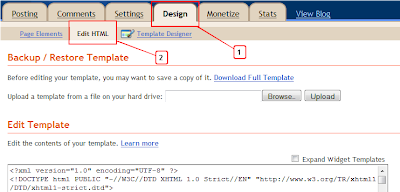
Design Edit Html Blogger

Step 2. Find the following piece of code in your blogs Html : (Click Ctrl and F for a search bar to help find the code -)

</head>

Step 3. Copy And Paste The Following Code Directly Above / Before </head>

<!--Animated Label Links For Blogger 
http://www.spiceupyourblog.com--><script 
src='http://ajax.googleapis.com/ajax/libs/jquery/1.5.1/jquery.min.js' 
type='text/javascript'>

</script>

<script type='text/javascript'>

var dur = 450; 

$(document).ready(function() {

$('a.linknudge, .Label ul li a').hover(function() {

$(this).animate({

paddingLeft: '20px'

}, dur);

}, function() {

$(this).animate({

paddingLeft: 0

}, dur);

});

});</script><!--End Animated Label Links For Blogger http://www.spiceupyourblog.com-->
Step 4. Save Your Template.

Followers

Blogumulus by Roy Tanck and Amanda Fazani
Free Blogger Tips, Hacks, Widgets, Templates and more